

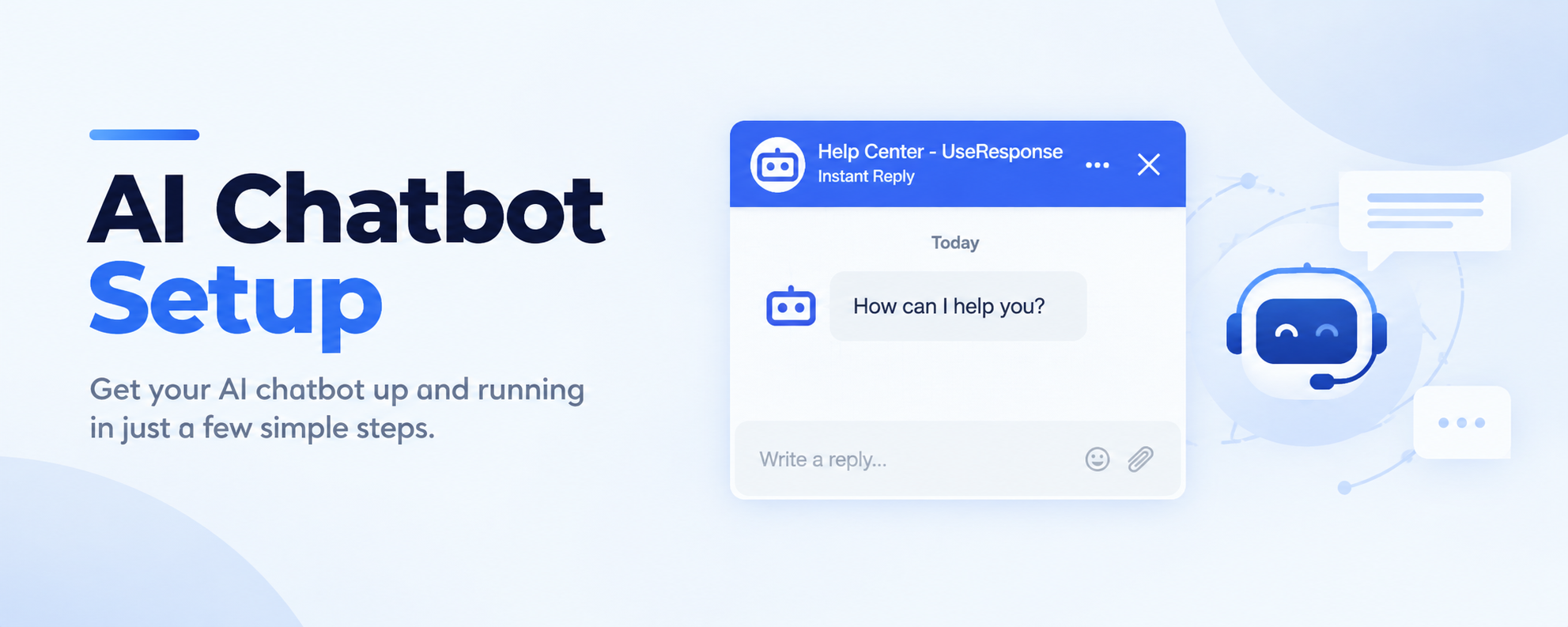
The AI Chatbot is a widget you can add to your website or customer support portal to answer customer questions automatically using your Knowledge Base as its source of information.
Unlike a traditional FAQ widget, the AI Chatbot understands natural language, allowing customers to ask questions in their own words and receive relevant answers. If it cannot find a suitable answer, the conversation can be escalated to a human agent.
In Onsite, AI Chatbot is configured as a step in a widget scenario. This gives you the flexibility to decide when the AI engages with customers. For example, you can set it to start after a customer submits their contact information or completes a form.
How AI Chatbot Works
- The customer asks a question. They open the chat widget and type their question in their own words.
- AI generates an answer. The AI searches your Knowledge Base for relevant information and uses it to generate a response. Customers can continue asking questions for as long as they need.
- The customer can request human assistance. If the AI cannot resolve the issue, the customer can ask to speak with a support agent.
- The conversation is transferred to your helpdesk. A chat is created in your helpdesk, with the full conversation history available to the agent. The AI Chatbot works on your website or support portal only — it cannot read or reply to messages from external marketplaces like Amazon or eBay.
How to Set Up AI Chatbot
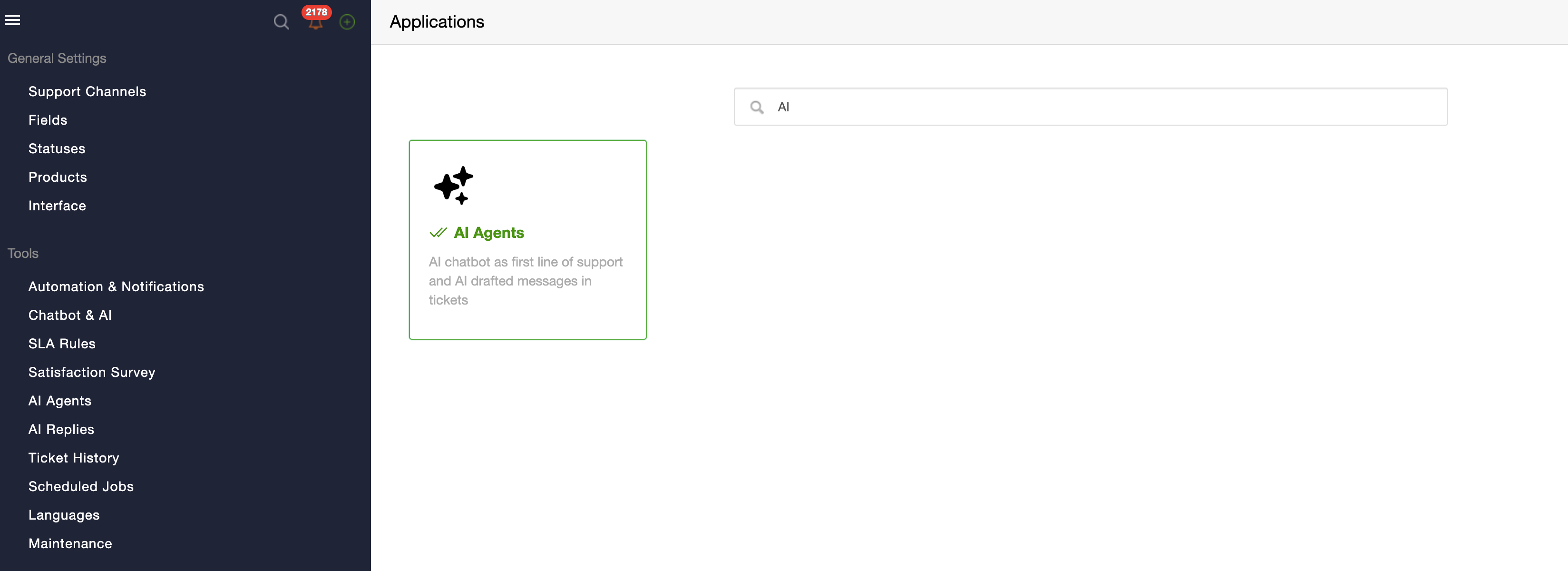
1. Enable AI Agents: Go to Administration → Applications and enable AI Agents.
2. Create an AI Agent: Create an AI Agent to use with your Chatbot. Learn how to create an AI Agent here.
3. Configure your scenario: Add the AI Bot as a step in your widget scenario.
4. Add the Chatbot widget: Embed the widget on your website or add it to your Onsite portal.
Click here to learn how you can create chat widget and connect it to your portal.
AI Order Lookup
AI Order Lookup is an optional feature for e-commerce businesses that enables the AI Chatbot to answer order-related questions using real order data. Instead of providing generic responses, the chatbot can retrieve details about a specific order and use them to give customers accurate, relevant answers.
How to Configure AI Order Lookup
To use this feature, you must have either Hemi or ChannelReply connected to your account. Order data is retrieved directly from these sources and is not stored separately in your helpdesk.
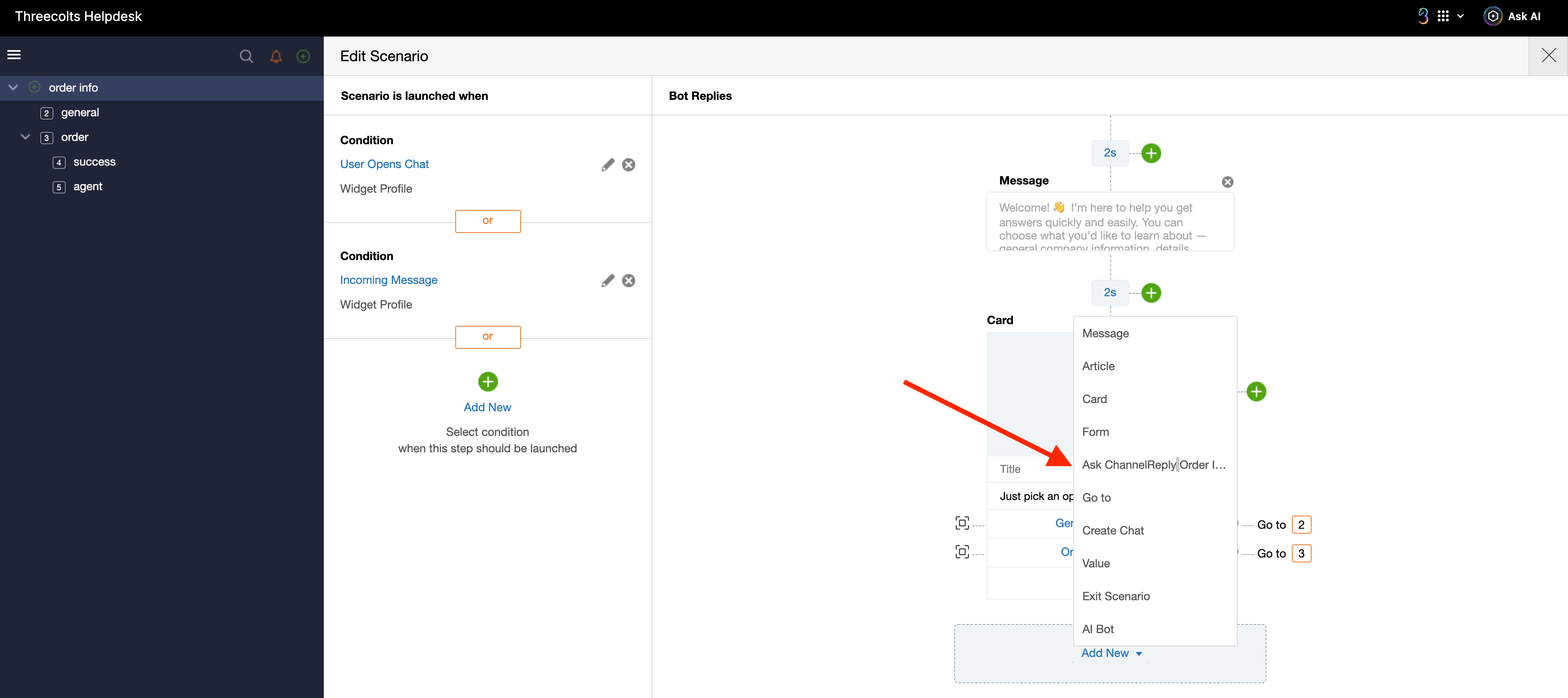
AI Lookup can be added to your chatbot scenario as a step:
How It Works
- The customer enters an Order ID. Your chatbot scenario includes a step called Ask ChannelReply Order Info, which prompts the customer to provide their Order ID.
- The system looks up the order. It searches for the order across your connected ChannelReply marketplace accounts.
- AI answers the customer's question. If the order is found, the AI uses the retrieved order data together with your Knowledge Base to generate a relevant response.
- The customer can continue if the order isn't found. They can try entering the Order ID again or continue the conversation without providing it.
- Order details are passed to your support team. If the conversation is transferred to an agent, the Order ID and retrieved order data are automatically included in the ticket.
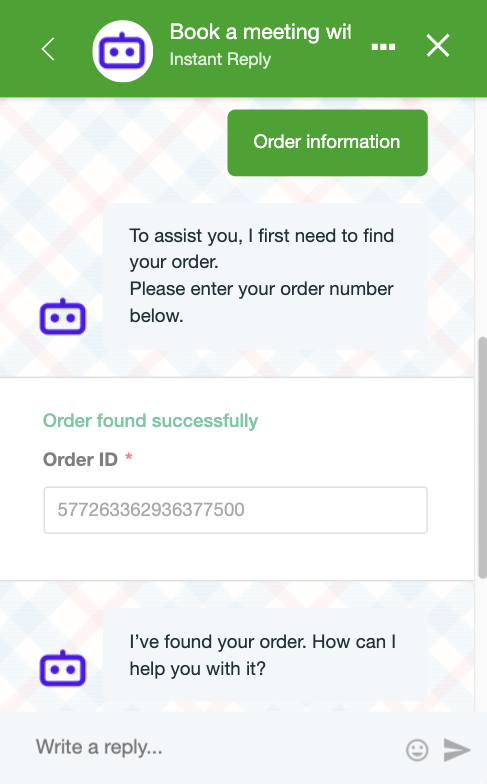
Important: Order Data Alone Isn't Enough. Even when an order is found and its details are available to the AI, the AI still needs clear instructions on how to use that information when responding to customers.
To get the best results, make sure you have the following in place:
- AI Agent prompt: Explain how the AI should use order information when answering questions about orders, deliveries, returns, and other order-related issues.
- Knowledge Base articles: Include relevant policies and guidelines covering topics such as shipping, returns, refunds, and cancellations. This helps the AI provide answers that align with your business policies.
Privacy note: The AI will never share a customer's address, phone number, email address, or payment details. This restriction is enforced at the system level and cannot be overridden through AI Agent instructions.
AI Conversations
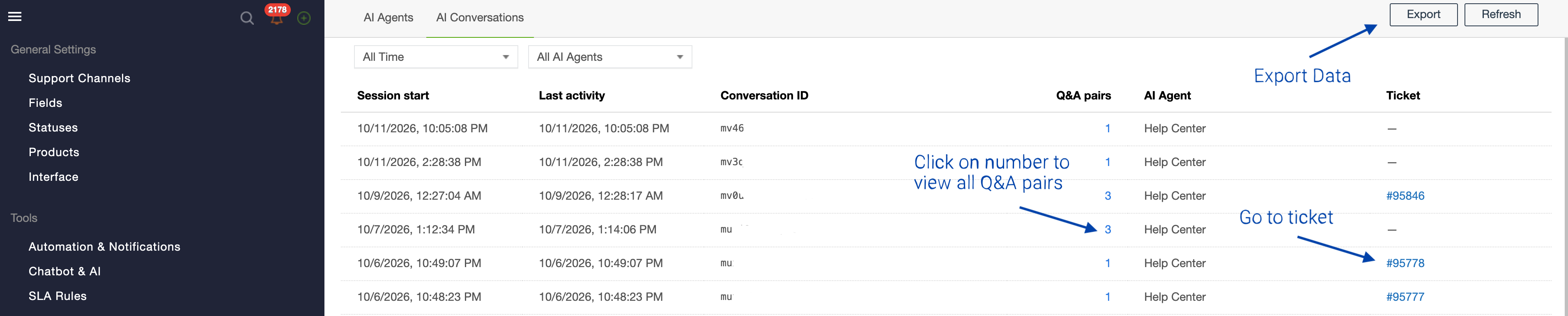
AI Conversations lets you review and monitor interactions handled by your AI Chatbot. Use it to see how conversations progress, which ones are resolved by AI, which are escalated to a human agent, and how customers rate the AI's responses.
To review your chatbot's performance, go to Administration → AI Agents → AI Conversations.
What You Can Access
- Conversation ID
- Q&A Pairs: click on QA number to see the full conversation between bot and customer. You will also see the Source – articles that bot used to reply.
- Linked tickets: If the conversation led to chat or ticket creation, you'll be able to view its ID and access it.
- Data Export